
Dashboard
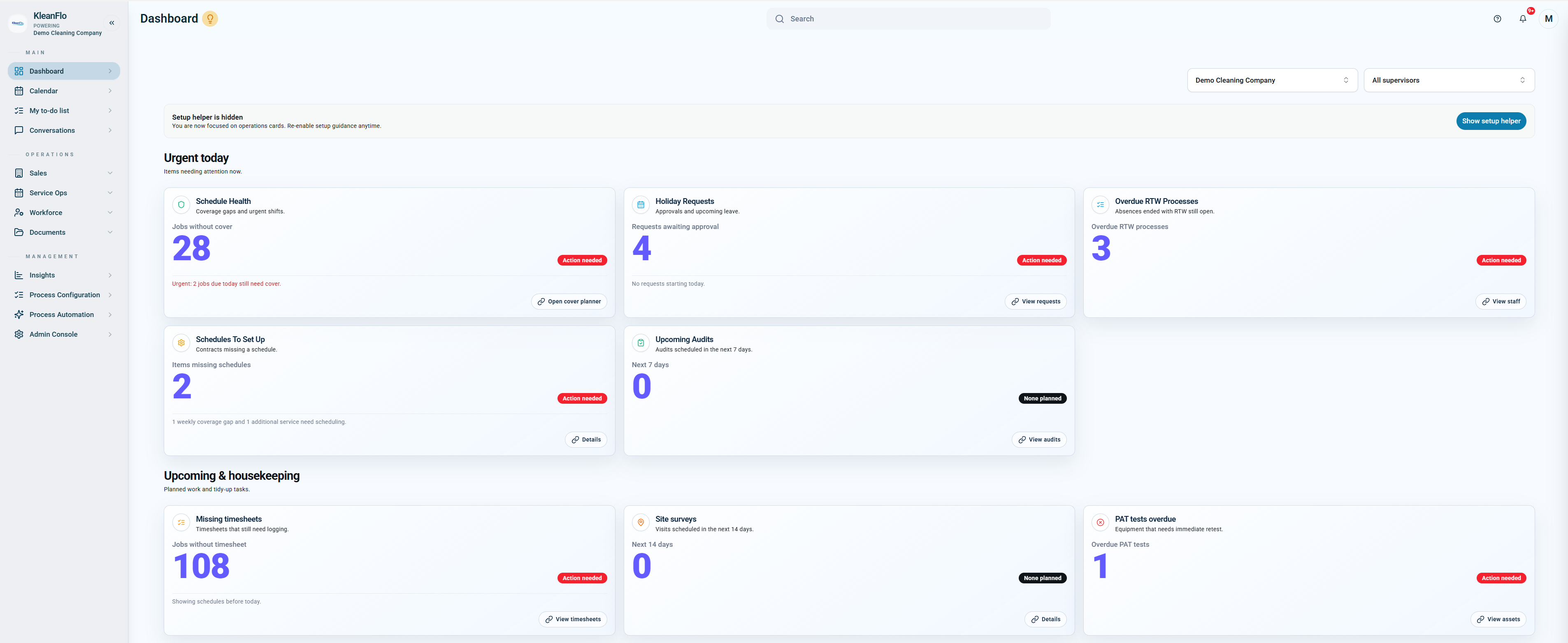
Use the Dashboard as the first operational check of the day. The cards are not there to replace detailed screens; they show where attention is needed and give a quick route into the right area.
Daily timesheet checks
Open the Timesheet review page for missing entries, needs-review items, duration checks, and geofence warnings.
Open the wider Daily tasks workflow.
How to read the dashboard
The dashboard is split into action groups. Cards marked Action needed should be reviewed first. Cards marked None planned or with a zero count still help confirm nothing is currently waiting in that area.
Use branch and supervisor filtersFilter the dashboard before reviewing counts so the figures match the branch or supervisor you are responsible for.
Open the card actionButtons such as Open cover planner, View requests, Details, or View timesheets take you to the screen where the work is handled.
Use My to-do list nextAfter checking the dashboard, use My to-do list as the action inbox for items that need approval, completion, or follow-up.
Urgent today
Schedule HealthShows jobs without cover or urgent shift cover problems. Use Open cover planner when staff absence, unassigned work, or cover gaps need action today.
Holiday RequestsShows leave requests waiting for approval. Use View requests, then check whether approving the leave creates a cover requirement.
Overdue RTW ProcessesShows return-to-work processes still open after absence. Use View staff to follow up the staff record and complete the required process.
Schedules To Set UpShows contracts missing schedules, including weekly coverage gaps and additional services that still need scheduling. Use Details, then review Schedule Wizard and Schedules.
Upcoming AuditsShows audits scheduled in the next seven days. Use View audits to confirm the assigned auditor, status, and whether anything is overdue.
Upcoming and housekeeping
Missing timesheetsShows planned jobs where a timesheet has not been logged. Use View timesheets, then check whether the job was missed, not checked in, or needs manual review.
Site surveysShows site visits due in the next 14 days. Use Details to check survey activity before quotation, contract, or setup work depends on it.
PAT tests overdueShows equipment that needs immediate retest. Use View assets to check the asset record and update the test status.
Setup helperThe setup helper can be hidden once users are focused on live operational cards. Show it again if onboarding guidance is needed.
Typical daily order
- Filter to the branch and supervisor. Make sure the dashboard is showing the area you are responsible for.
- Review Urgent today. Deal with schedule health, holiday requests, return-to-work, schedules to set up, and upcoming audits before routine checks.
- Check Missing timesheets. This is a key daily payroll and operational control. Open timesheets and review missing or unusual entries.
- Review upcoming and housekeeping cards. Site surveys and PAT tests may not stop today's cleaning, but they should not be allowed to drift.
- Open My to-do list. Use it as the working list for approvals, processes, timesheets, audits, and follow-up actions.
View dashboard example