
Turn on geofence validation for the site when check-in and check-out location checks are needed.
Disabled geofence means no boundary is being enforced for that site.Geofence
A geofence is the site boundary used to check whether staff are at the right location when they check in or check out. Getting this right reduces timesheet queries and saves admin time.
What staff may seeStaff can receive a message saying they are checking in or checking out outside the geofence.
What it can meanThe staff member may genuinely be outside the site, or the geofence centre/radius may not be set correctly.
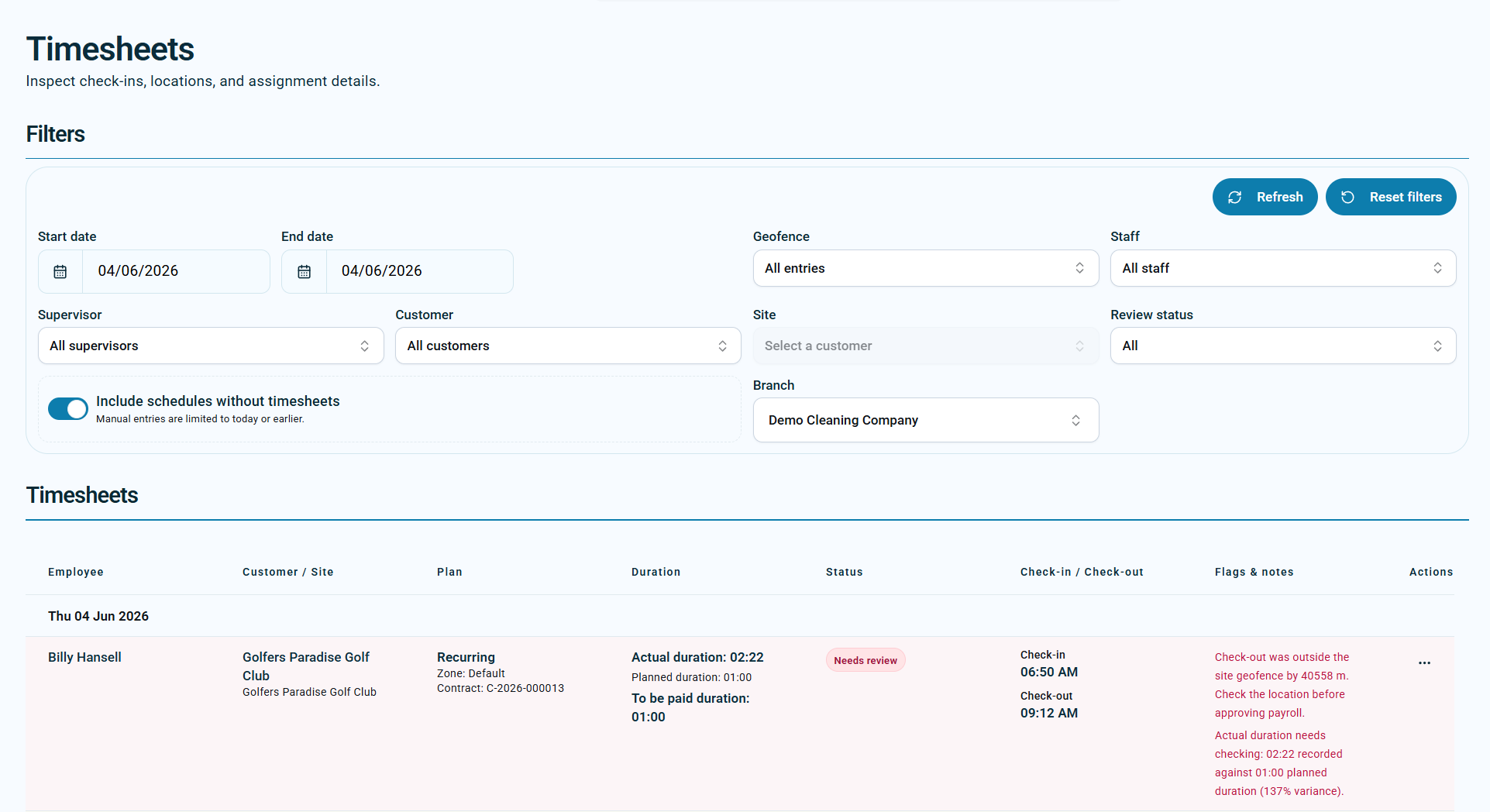
Why it mattersGeofence warnings appear in Timesheets, so a poor geofence creates avoidable review work for supervisors and payroll checks.
Where geofence is set
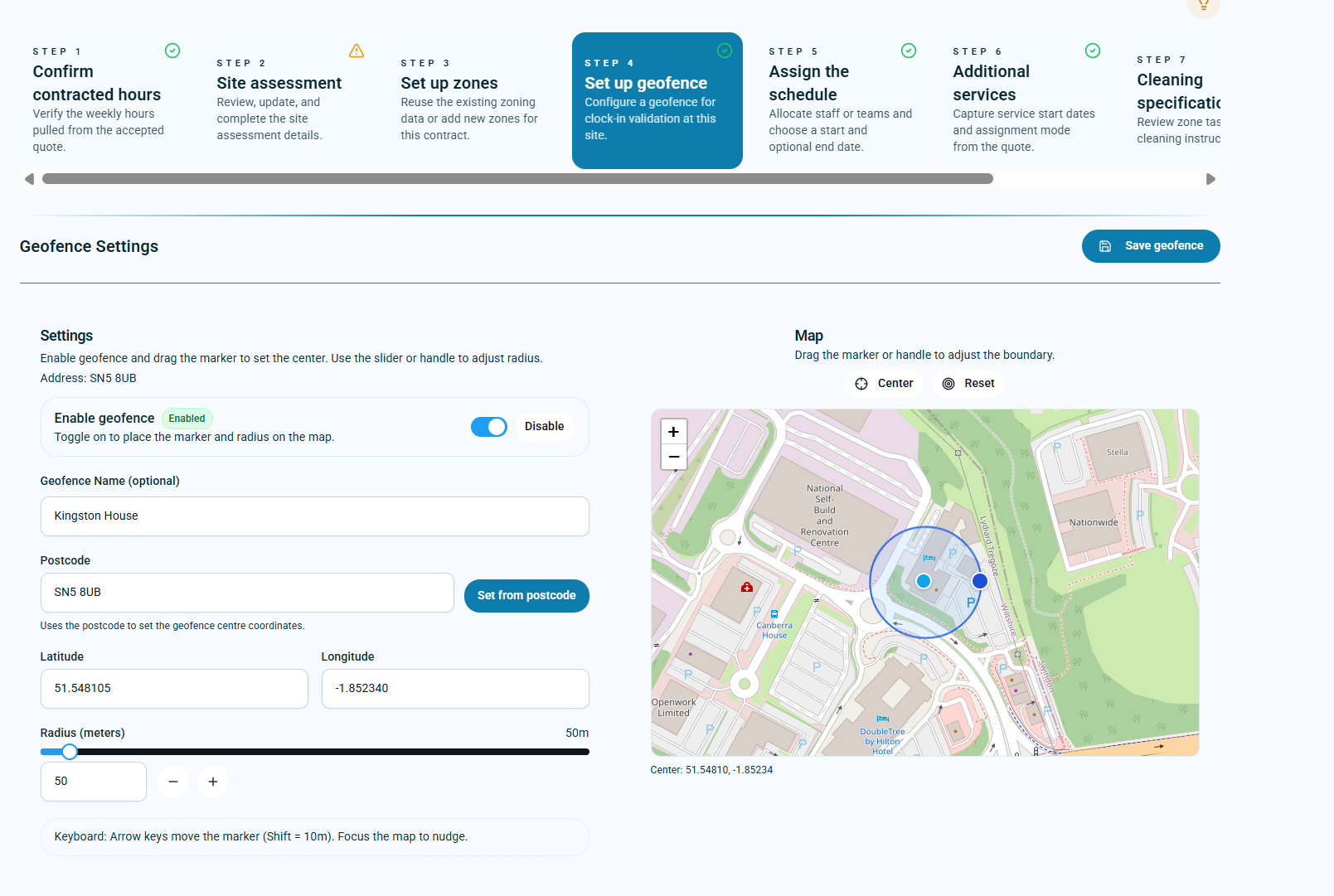
Quotation WizardDuring setup, use the Set up geofence step to configure clock-in validation for the site.
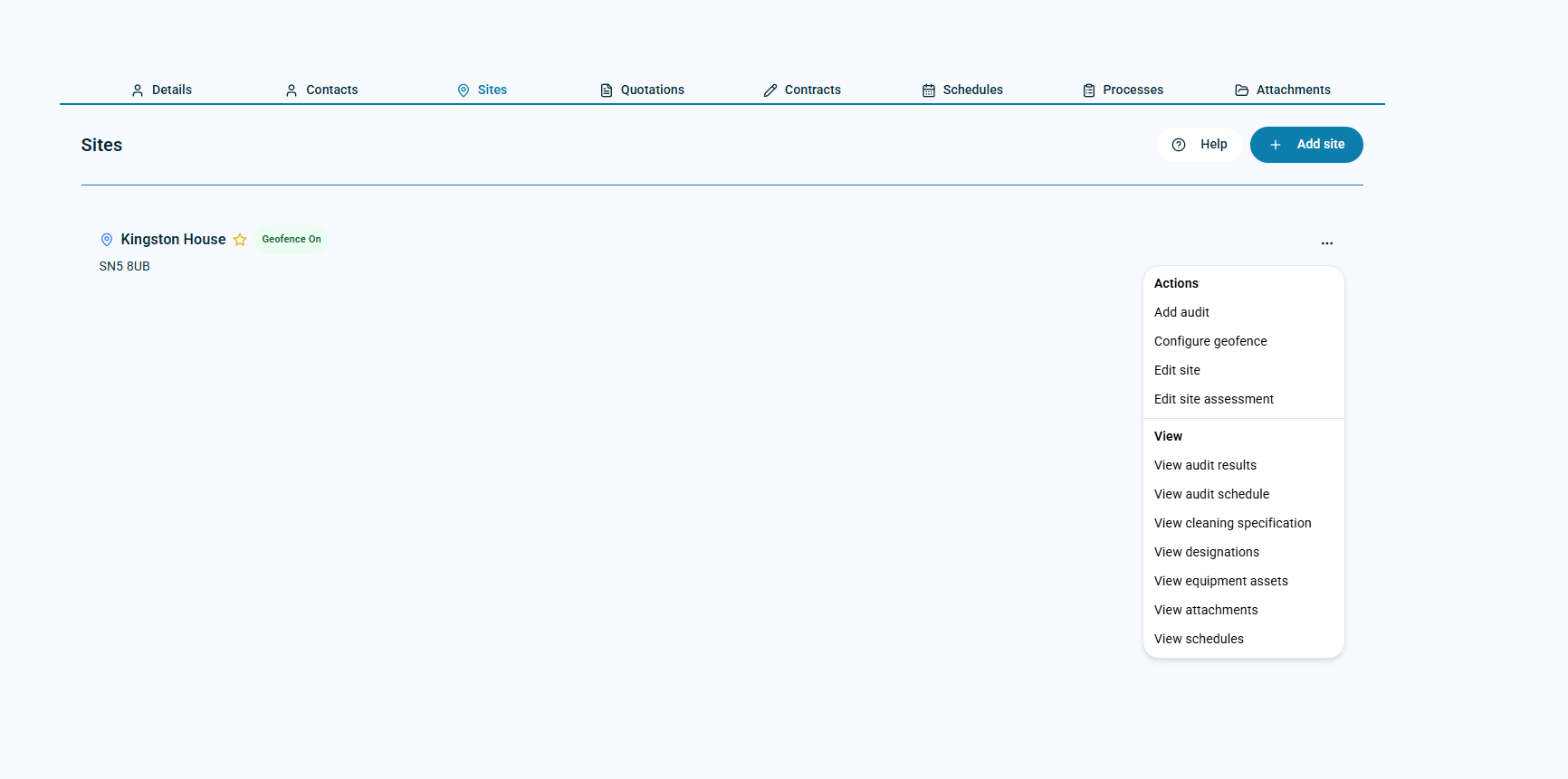
Customer site recordOpen the customer, go to Sites, use the site action menu, then choose Configure geofence.
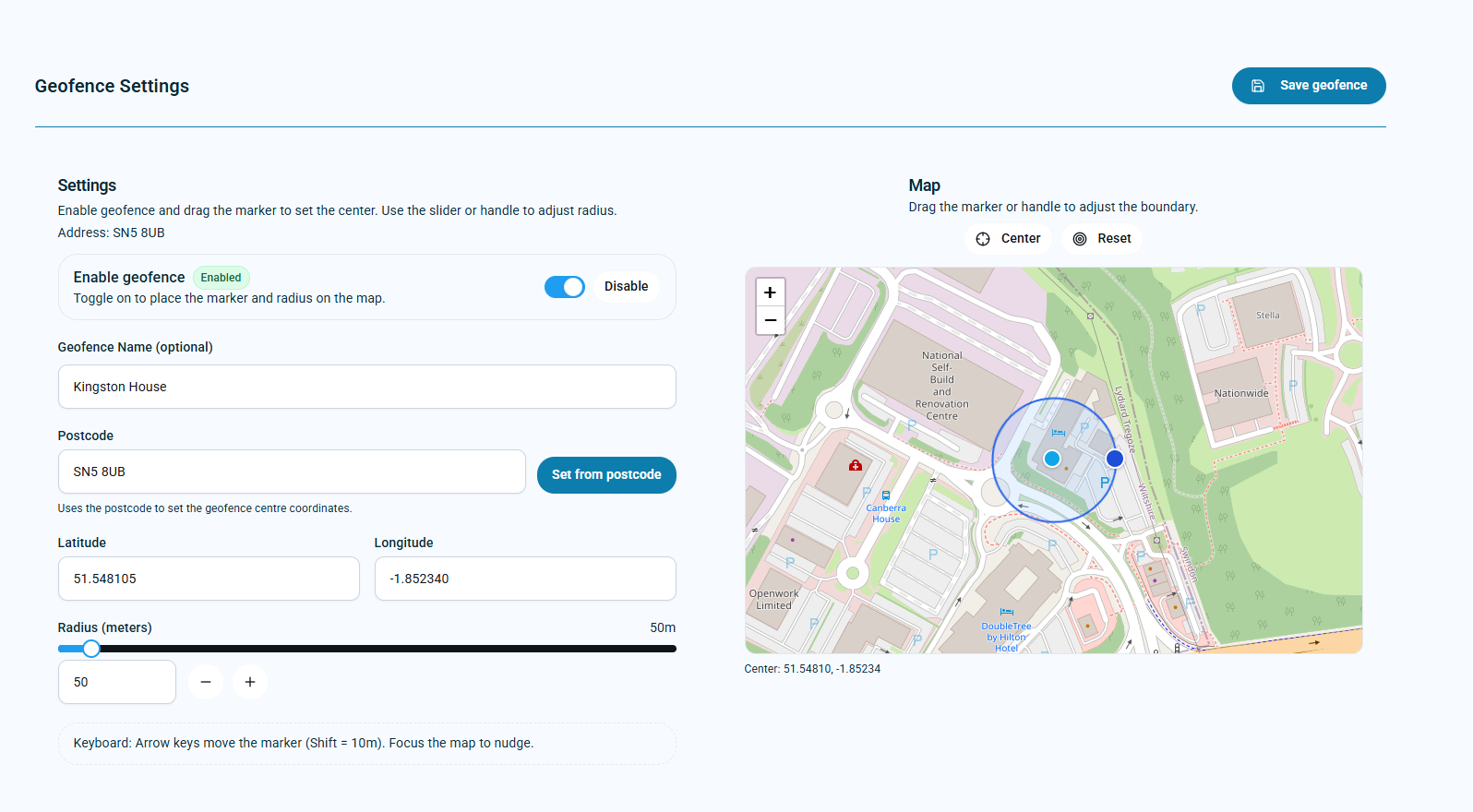
Geofence settingsEnable the geofence, set the centre from postcode or map position, then adjust the radius in metres.
TimesheetsCheck-in and check-out locations are reviewed in Timesheets, including outside-geofence warnings.
NFC card check-inNFC can be used as an alternative where GPS tracking is unreliable or a fixed site scan point is preferred.
How to respond to a warning
- Check the timesheet warning. Confirm whether the issue is check-in, check-out, or both.
- Check the site geofence. Open the customer site and review the centre point and radius.
- Compare the warning distance. A very large distance usually means the wrong site, wrong coordinates, or a badly placed geofence.
- Correct the geofence before approving repeated exceptions. A correct geofence prevents the same warning from creating daily admin work.
- Speak to the staff member when needed. If the geofence is correct, the warning may indicate they were not at the site when they checked in or out.
Set the geofence properly
Examples