
The process has been created or started.
This is required and cannot be removed.Processes
Use processes for repeatable workflows that need ownership, actions, fields, evidence, documents, dates, approval, and progress tracking.
Plain English rule
A process is a reusable checklist with actions. Each action can have an owner, required fields, optional scheduling, optional mobile notification, and optional supervisor approval.
What processes are for
Design a repeatable workflowBuild reusable process templates from ordered actions, fields, ownership rules, visibility, and status flow.
Run live workStart a process against a record, assign ownership, update fields, upload evidence, and track progress.
Generate documentsUse document actions where a DOCX template should be populated from process or record data.
Automate repeat workProcesses can be started manually or created by automation rules from business events, due dates, or recurring checks.
What a process can be linked to
When creating a process, choose the area it belongs to. This controls where the process is found and which type of record it supports.
Customer and site workCustomers, contracts, quotations, invoices, prospects, and customer follow-up.
People and HR workStaff processes such as return to work, onboarding, reviews, or document acknowledgements.
Operational recordsAudits, incidents, equipment, and vehicles. Vehicles may not be visible in a short dropdown list until the user scrolls or searches.
Process board / general workUse Process board or General when the process does not belong clearly to one record type.
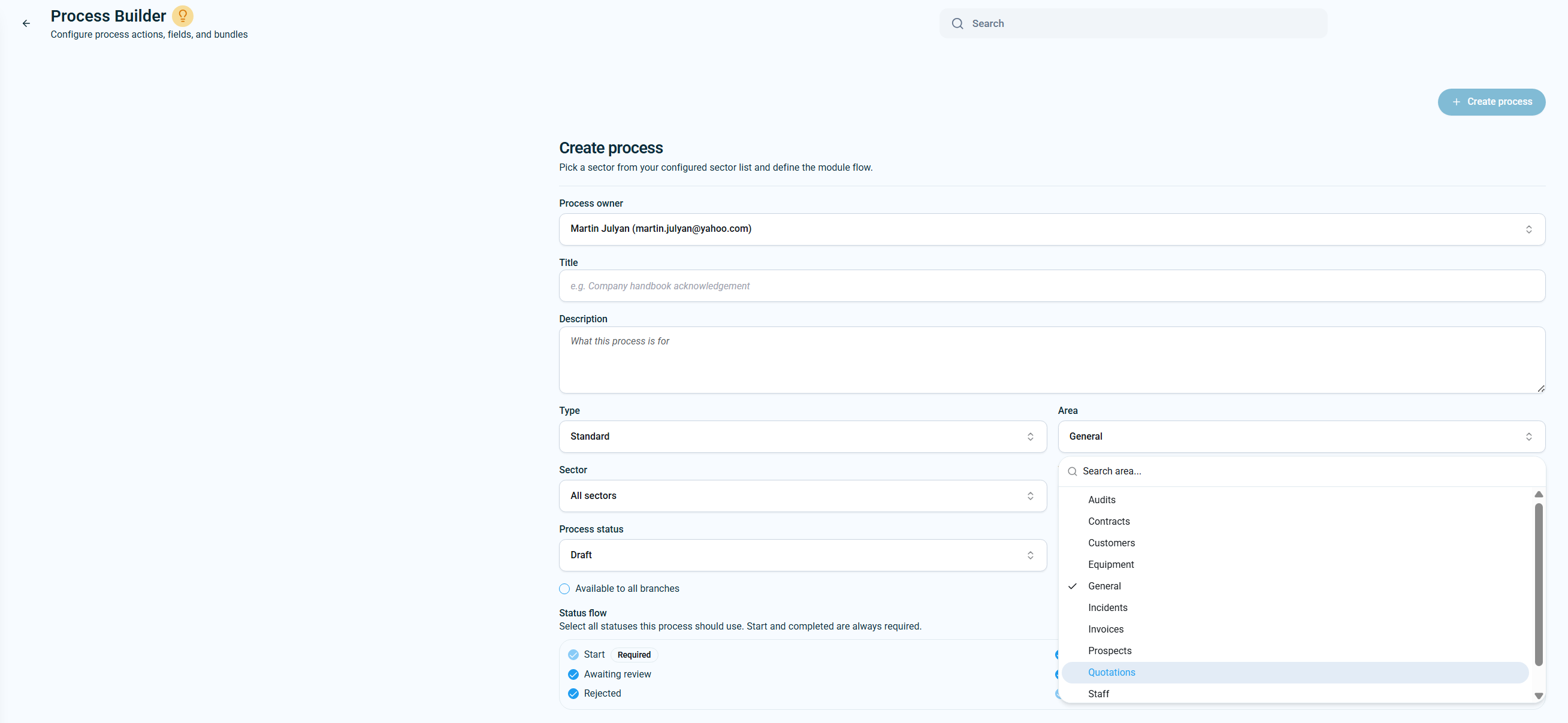
The KleanFlo process areas include Audits, Contracts, Customers, Equipment, Process board or General, Incidents, Invoices, Prospects, Quotations, Staff, and Vehicles.
Create the process
- Choose the process owner. This is the person responsible for the process design and ongoing control.
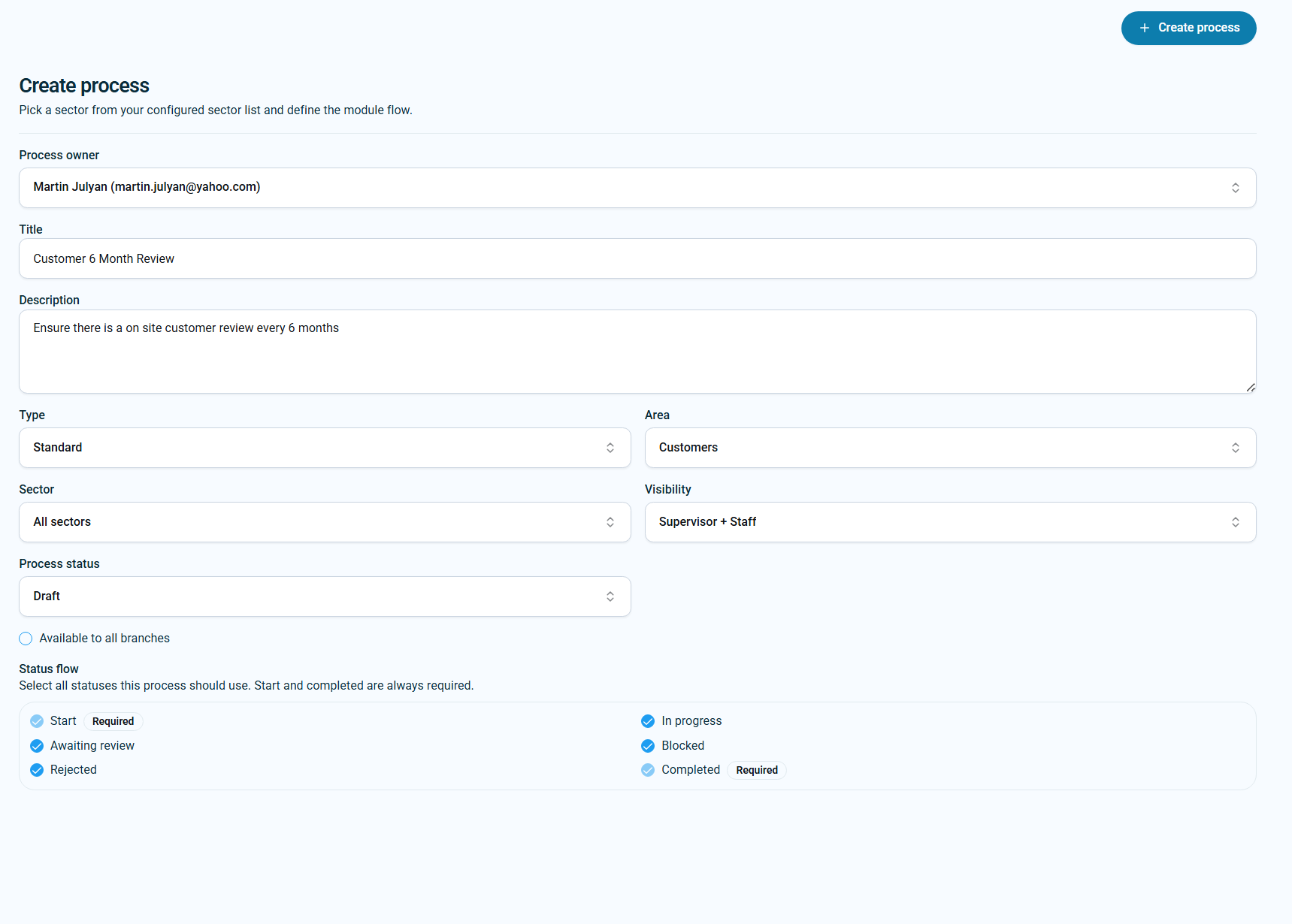
- Add a clear title and description. The title should describe the business outcome, such as Customer 6 Month Review.
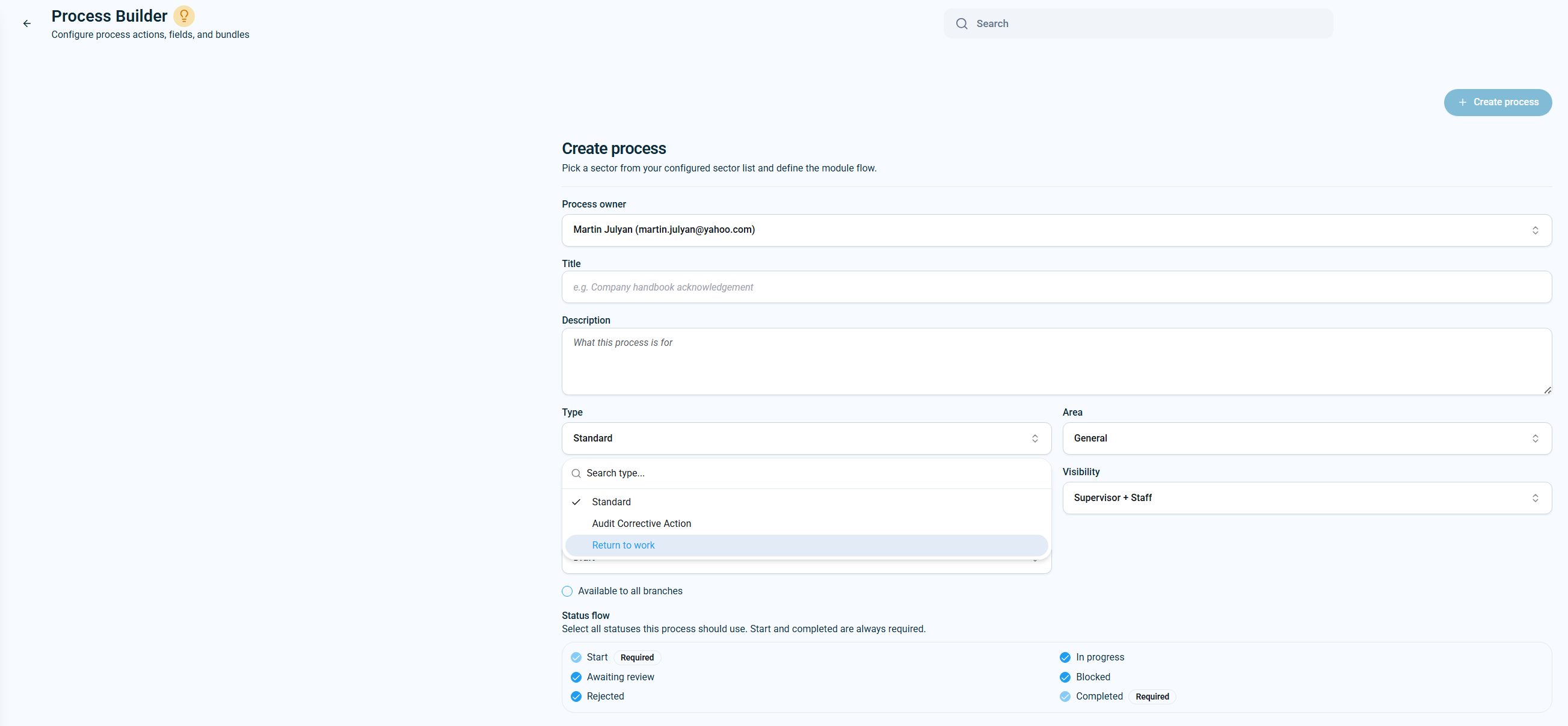
- Choose the process type. Standard is used for normal form-based workflows. Specialist types include Return to work and Audit Corrective Action and should only be used when the workflow matches that purpose.
- Choose the area and sector. The area determines where the process links in KleanFlo. Sector can be used where the process applies to a specific configured sector.
- Set visibility. Choose Supervisor + Staff when staff can see or work with the process. Choose Supervisor only when it should stay in the dashboard/supervisor workflow.
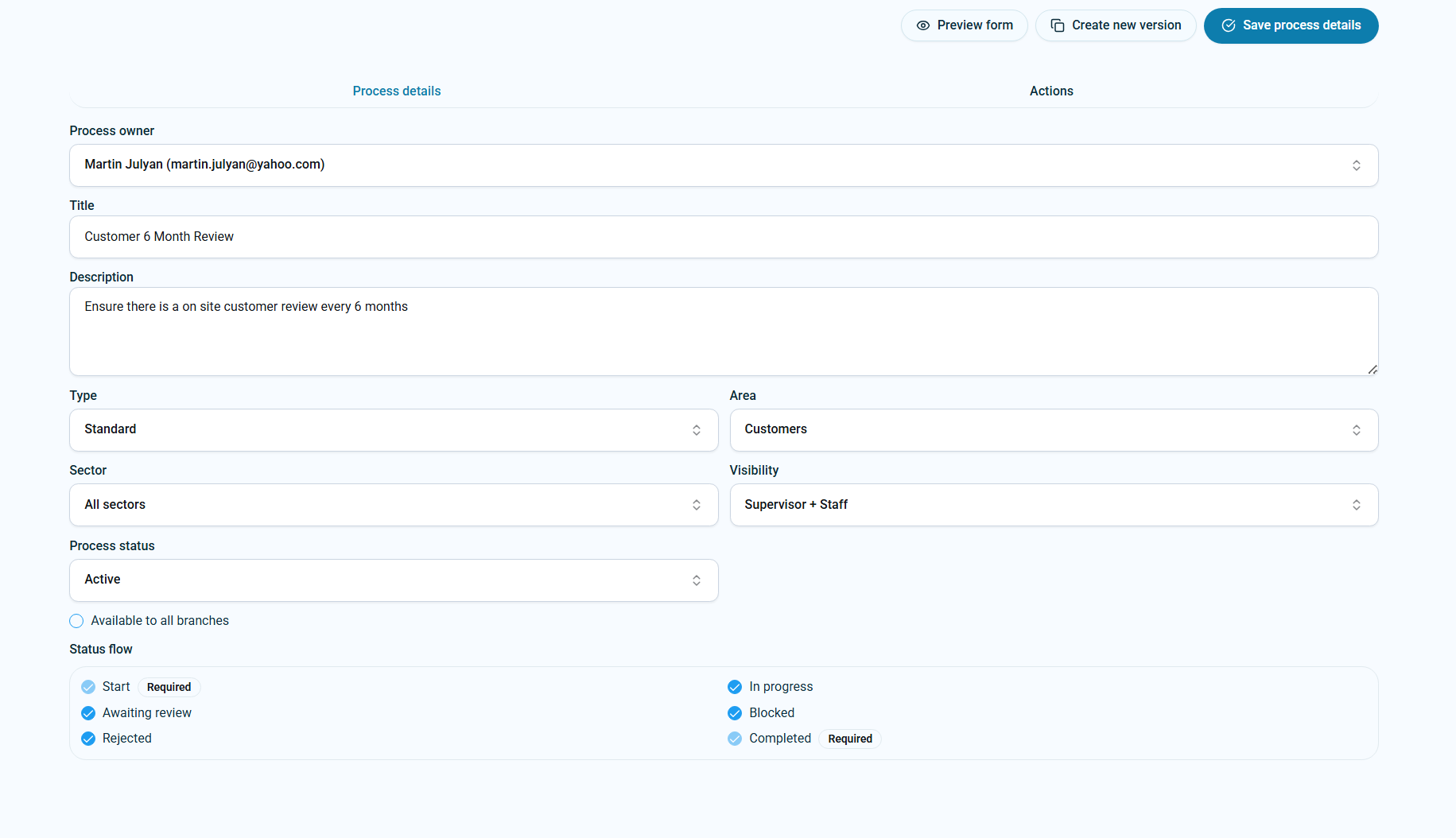
- Leave status as Draft while building. Draft is for setup. Active is for live use. Inactive should be used when the process should no longer be started.
View process setup examples
Status flow
Start and Completed are always required. Other statuses can be enabled to match how the process should be controlled.
Running processes
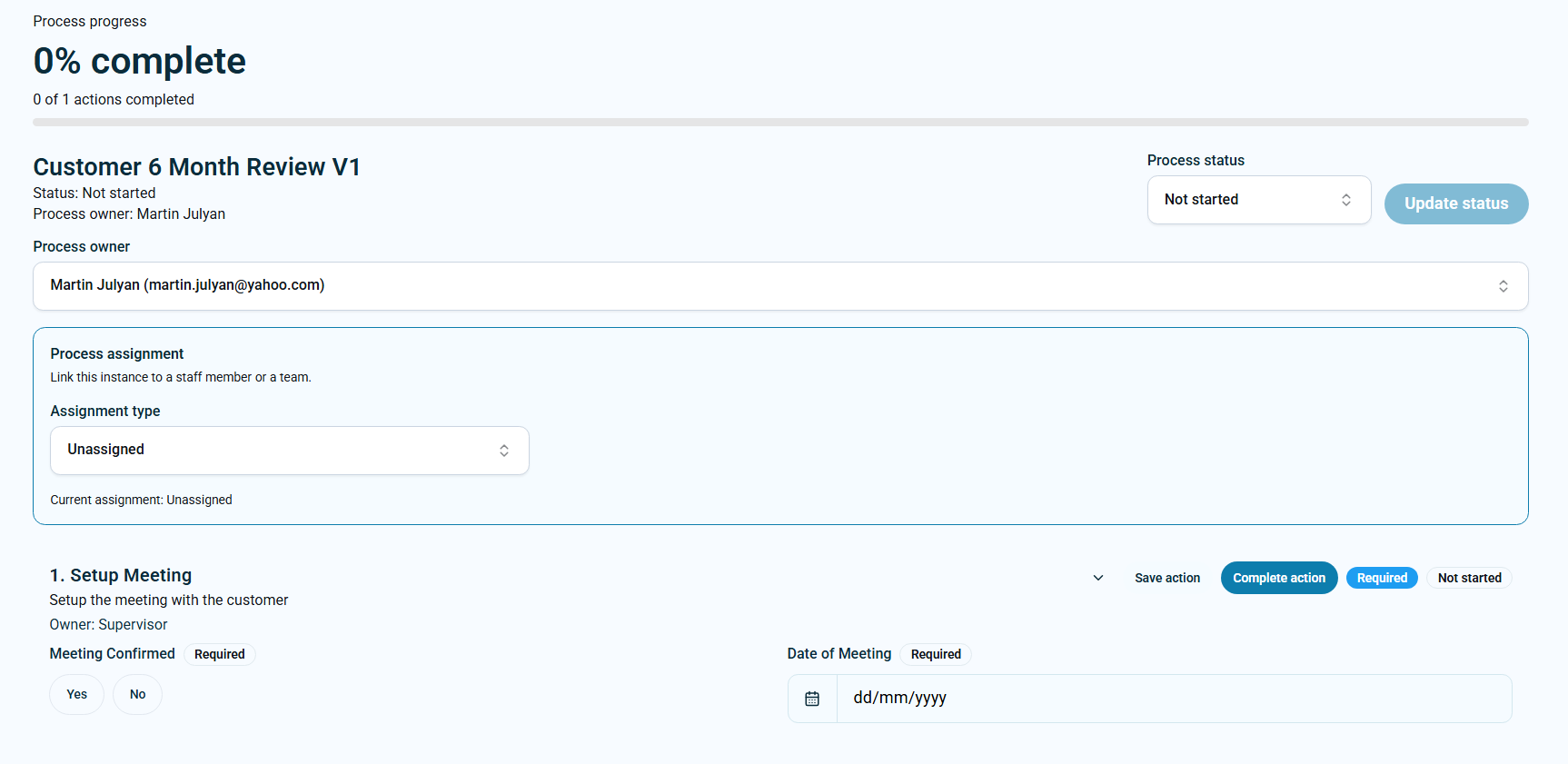
Once a process is active and started against a record, users work through the live process instance rather than the builder. Live processes show progress, process owner, process status, assignment, action fields, evidence, and completion controls.
- Use the Processes page to track live work across staff, customers, equipment, vehicles, audits, and other linked areas.
- Filter by process, action, customer, branch, supervisor, status, or search term to find open work quickly.
- Completed processes are normally hidden by default open-work filters so teams can focus on current work.
- Open a process to update fields, upload evidence, change ownership, move status, or complete actions.
Add actions
Actions are the steps inside the process. Each action should tell the user what needs to be done, who is responsible, what evidence must be entered, and whether a date or notification is needed.
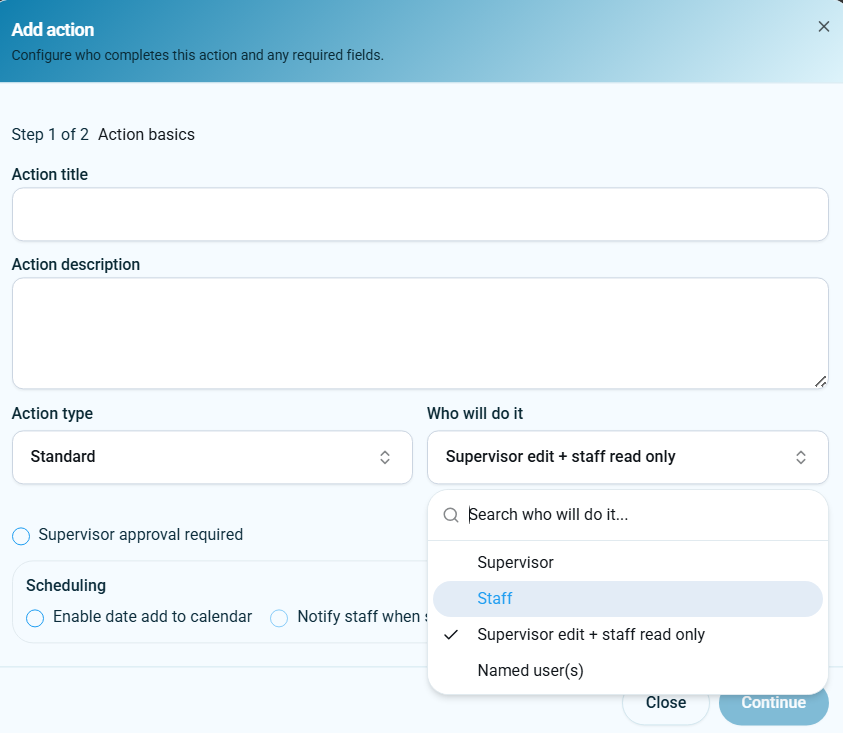
SupervisorThe supervisor owns and completes the action.
StaffThe staff member owns and completes the action where staff input is required.
Supervisor edit + staff read onlyThe supervisor controls the action while staff can see the information.
Named user(s)One or more specific users are responsible, useful where the task must go to a named person.
Supervisor approval
Important fact
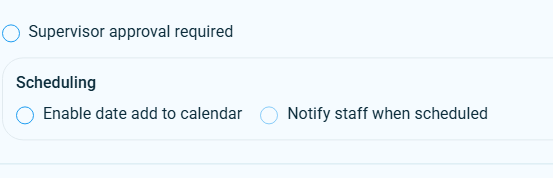
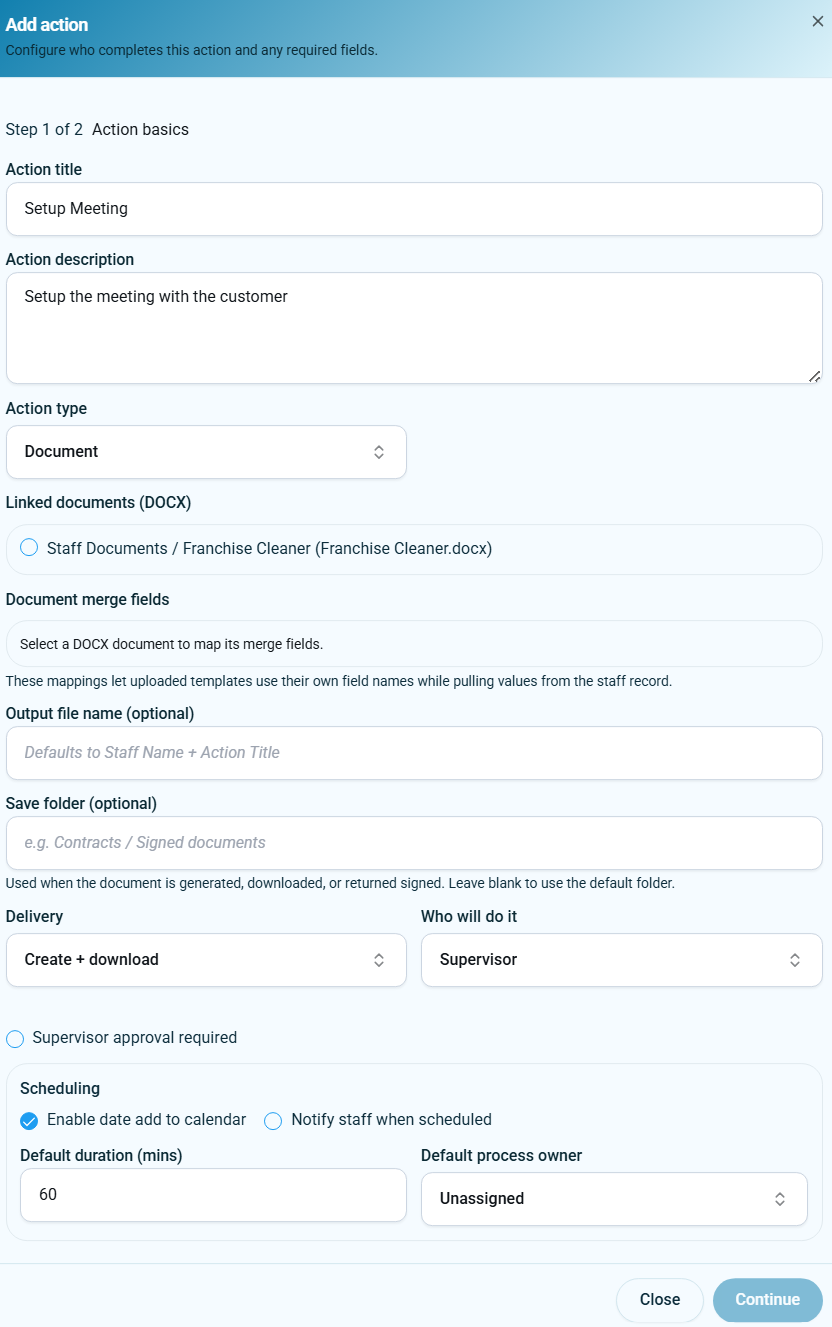
If Supervisor approval required is ticked, completing all required fields does not complete the action by itself. The action remains unfinished until the supervisor approves it.
Use supervisor approval when the action needs checking before it can count as complete, for example return-to-work checks, signed document checks, audit follow-up, or important customer review steps.
Scheduling and mobile notifications
If something must happen on a specific date for a staff member, enable scheduling on the action. The action can be added to the calendar and can notify staff when scheduled.
- Enable date add to calendar when the action should appear as a dated item.
- Notify staff when scheduled when staff need a mobile app notification.
- Default duration helps make the calendar item realistic.
- Default process owner controls who owns the scheduled action if no one else is selected.
View action setup examples
Action types
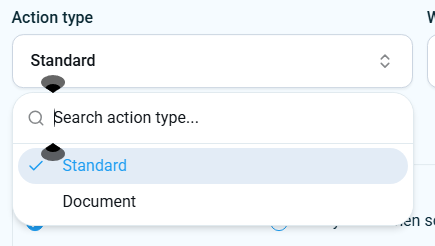
Standard actionUse for normal actions where the user completes fields on the screen.
Document actionUse where a DOCX template should be selected, populated using merge fields, generated, downloaded, or returned signed.
For document actions, choose the linked DOCX template, map document merge fields, set an output file name if needed, choose the save folder, and decide whether the document is created and downloaded, sent via Signable, or sent via DocuSign where those integrations are configured.
View action type and document examples
Add fields to actions
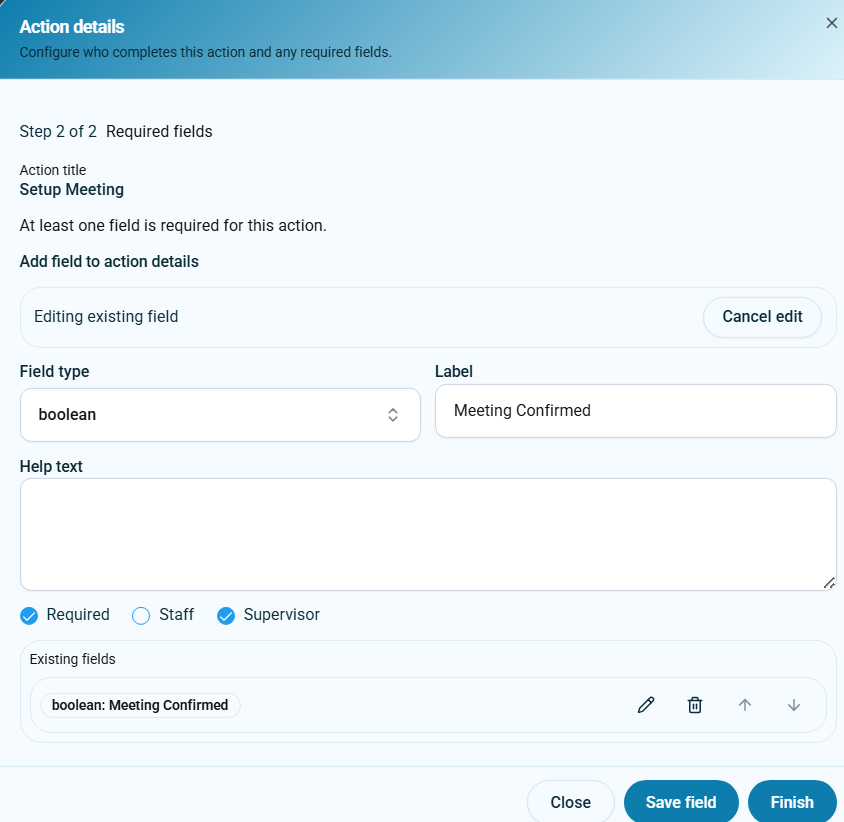
Fields define what information must be captured before an action can move forward. Add fields to the action details screen so users know exactly what to enter.
Field typeChoose the format, such as date, memo, yes/no indicator, signature, attachment, list, or link.
Label and help textUse a plain label and help text so the user understands what evidence is needed.
RequiredTick Required where the action should not progress without the field being completed.
Staff or supervisorChoose whether the field is completed by staff, supervisor, or both depending on the workflow.
View required field example
Set to Active when ready
Keep the process in Draft while building. When the process has been reviewed, set the process status to Active and save the process details. Active processes can then be used from the relevant record area.
- Check the title and description are clear.
- Check the area includes the right linked records, including vehicles where relevant.
- Check each action has the right owner type.
- Check supervisor approval is only enabled where approval is genuinely required.
- Check scheduled actions have realistic dates, duration, owner, and notification settings.
- Preview the form before using the process with live records.
Automation and versioning
View active process and linked record examples