
Quotation documents may be generated without the user's signature.
Upload or replace the signature before sending documents that require a signed presentation.Settings
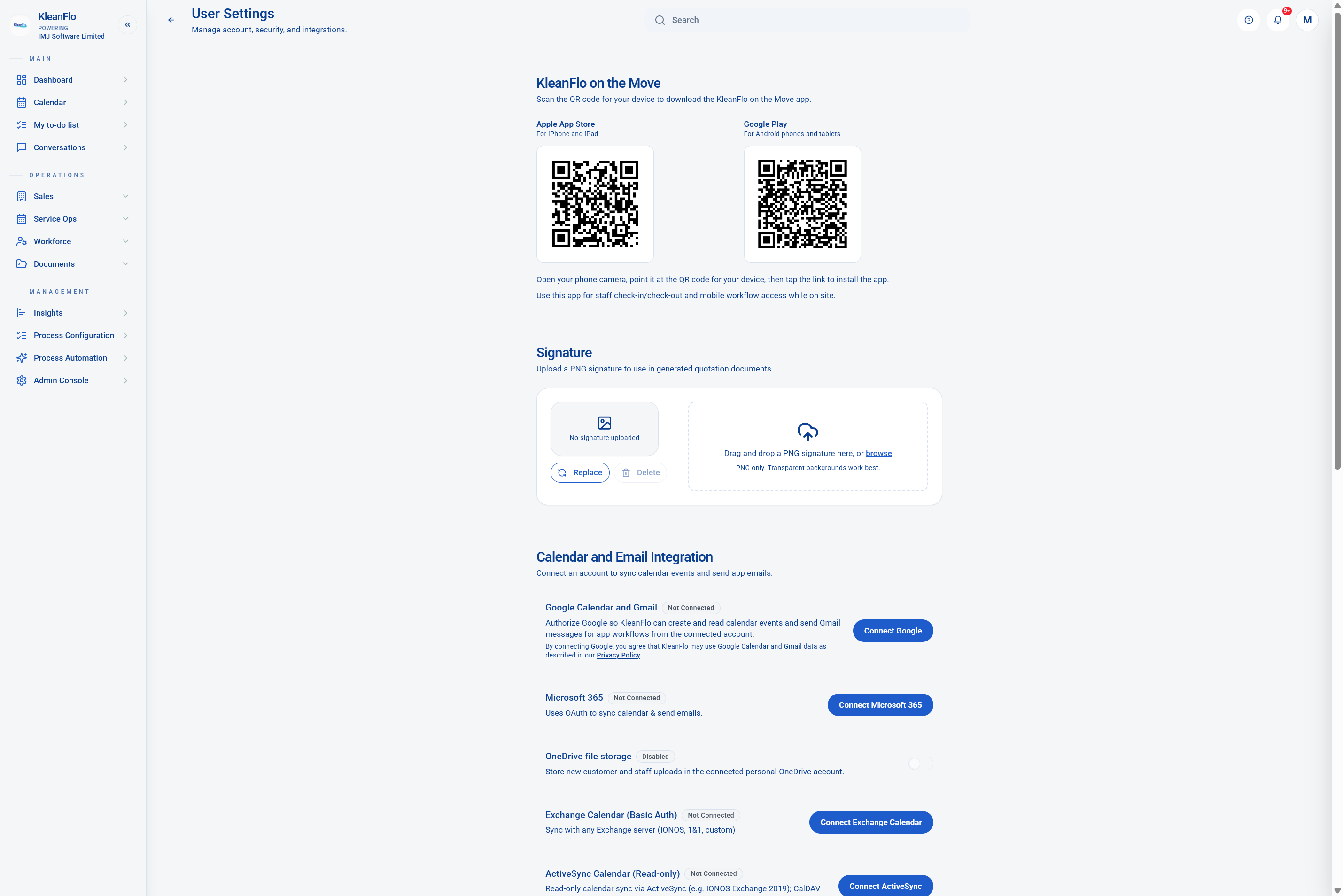
Use User Settings to manage personal preferences, download KleanFlo on the Move, upload a quotation signature, and connect calendar or email accounts where your role requires it.
Best first check
Open the profile or initials menu in KleanFlo, then choose User Settings. Settings are personal to the signed-in user, so each owner, supervisor, or office user should review their own account.
When to use Settings
Mobile app accessScan the Apple App Store or Google Play QR code to install KleanFlo on the Move.
Signature uploadUpload a PNG signature so generated quotation documents can include the correct user signature.
Email connectionConnect Google, Microsoft 365, Exchange, or ActiveSync when KleanFlo needs to sync calendar events or send workflow emails through your account.
File storageEnable OneDrive file storage only when your branch wants new customer and staff uploads saved to the connected personal OneDrive account.
KleanFlo on the Move
Use this section to install the mobile app on the right device. Open the camera on the phone or tablet, scan the Apple App Store or Google Play QR code, and follow the store link to install the app.
- Use the app for staff check-in and check-out while on site.
- Supervisors can use mobile workflows such as audits, site visits, and tasks where their role has access.
- If a user changes device, revisit Settings and scan the QR code again from the new device.
Signature
Upload a PNG signature when the user creates or sends quotation documents. A transparent PNG gives the cleanest result on generated documents.
Calendar and email integration
Connect the email or calendar account that the user is authorised to use for KleanFlo work. If the branch uses Microsoft 365 or Google Workspace, confirm the right account before authorising access.
Google Calendar and GmailAuthorises KleanFlo to create and read Google calendar events and send Gmail messages for app workflows from the connected account.
Microsoft 365Uses OAuth to sync calendar events and send emails through a Microsoft 365 account.
Exchange CalendarUse this for Exchange servers that require Basic Auth, such as IONOS, 1&1, or a custom Exchange setup.
ActiveSync CalendarRead-only calendar connection for ActiveSync where full email sending is not required.
Before connecting an account
- Check the account owner. Connect the user's work account, not a personal account, unless the business has approved it.
- Confirm what KleanFlo needs to do. Calendar sync, workflow emails, and file storage are separate decisions.
- Use the right provider button. Choose Google, Microsoft 365, Exchange Calendar, or ActiveSync based on the mailbox and calendar service in use.
- Re-authenticate after account changes. If a password, mailbox, or permissions change, disconnect and reconnect the integration.
- Ask before connecting shared mailboxes. Shared or branch-wide mailboxes may need IT approval and different permissions.
View User Settings example