

KleanFlo logs the IVR check-in even when it cannot find a matching planned schedule.
This prevents the work record from being lost, but it should be reviewed before payroll is trusted.Phone check-in (IVR)
Phone check-in lets staff record check-in and check-out by calling the IVR number from a site landline or by entering a site code. Use it where mobile app check-in is not practical or where a landline record is useful evidence.
IVR phone number
01392 542296
Staff call this number to check in or check out by phone.
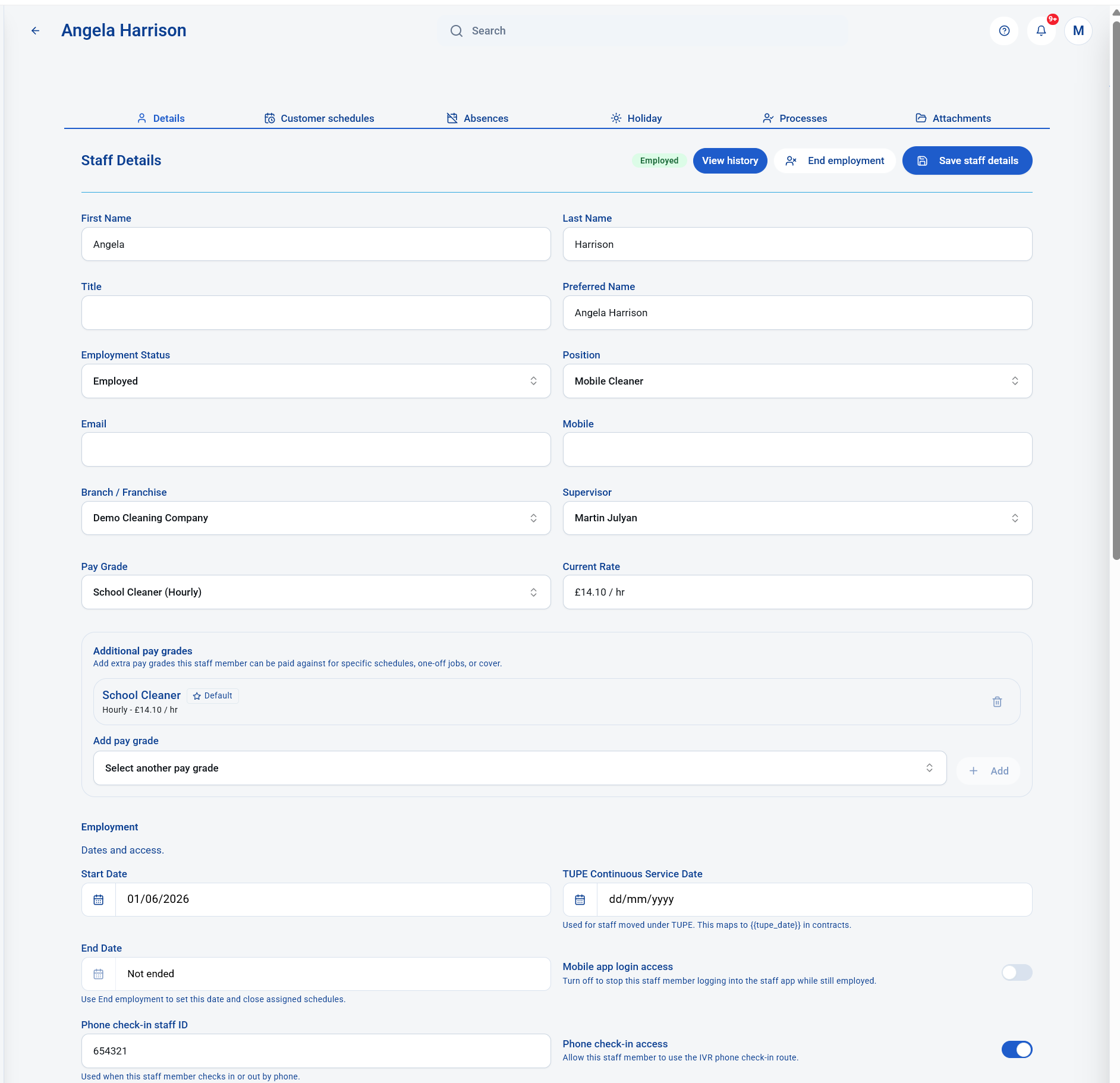
Staff setupThe staff member must have phone check-in access turned on and a unique 6 digit phone check-in staff ID.
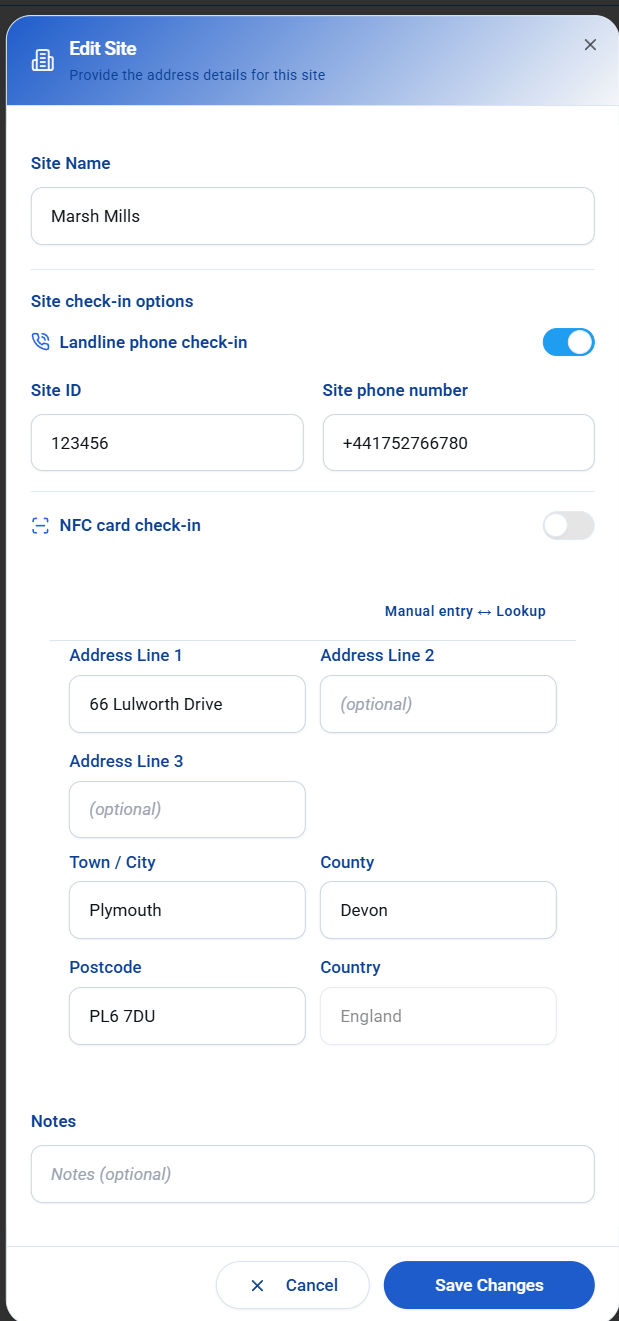
Site setupThe site needs landline phone check-in enabled, a unique 6 digit site code, and the site phone number saved.
Timesheet reviewIVR entries still appear in Timesheets and may need review when no matching schedule is found.
Before staff can use IVR
Phone check-in staff IDEach allowed staff member needs a unique 6 digit code. This is the code they enter when the IVR asks for their staff ID.
Phone check-in accessTurn on phone check-in access on the staff record. Staff without access should not be able to use the IVR route.
Site phone numberEnable landline phone check-in on the site and enter the site landline. UK numbers are converted to +44 format automatically.
Site IDEach IVR-enabled site needs a unique 6 digit site code. Staff use this when the caller number is not recognised.
How the call works
- Staff call the IVR number. They choose 1 to check in or 2 to check out.
- Staff enter their 6 digit staff ID. KleanFlo uses this to identify who is checking in or out.
- KleanFlo checks the caller phone number. If the caller number matches a saved site phone number, KleanFlo can identify the site automatically.
- If the phone number is not recognised, staff enter the 6 digit site code. This lets KleanFlo identify the site even when the call is not from the saved landline.
- KleanFlo looks for a matching schedule. If the phone number or site code matches and there is a schedule, the staff member receives a confirmation message.
- If no schedule is found, the entry is still logged. The staff member is advised that no schedule is available, and the record is held for review in Timesheets.
What happens when there is no schedule
Already checked in elsewhere
If a staff member is already checked in and tries to check in to another site, KleanFlo asks whether they want to auto close the first check-in. This protects against open check-ins being left behind when staff move between sites.
Where IVR evidence appears
Timesheets listIVR entries can appear as Needs review, especially when no schedule was matched or the recorded duration needs checking.
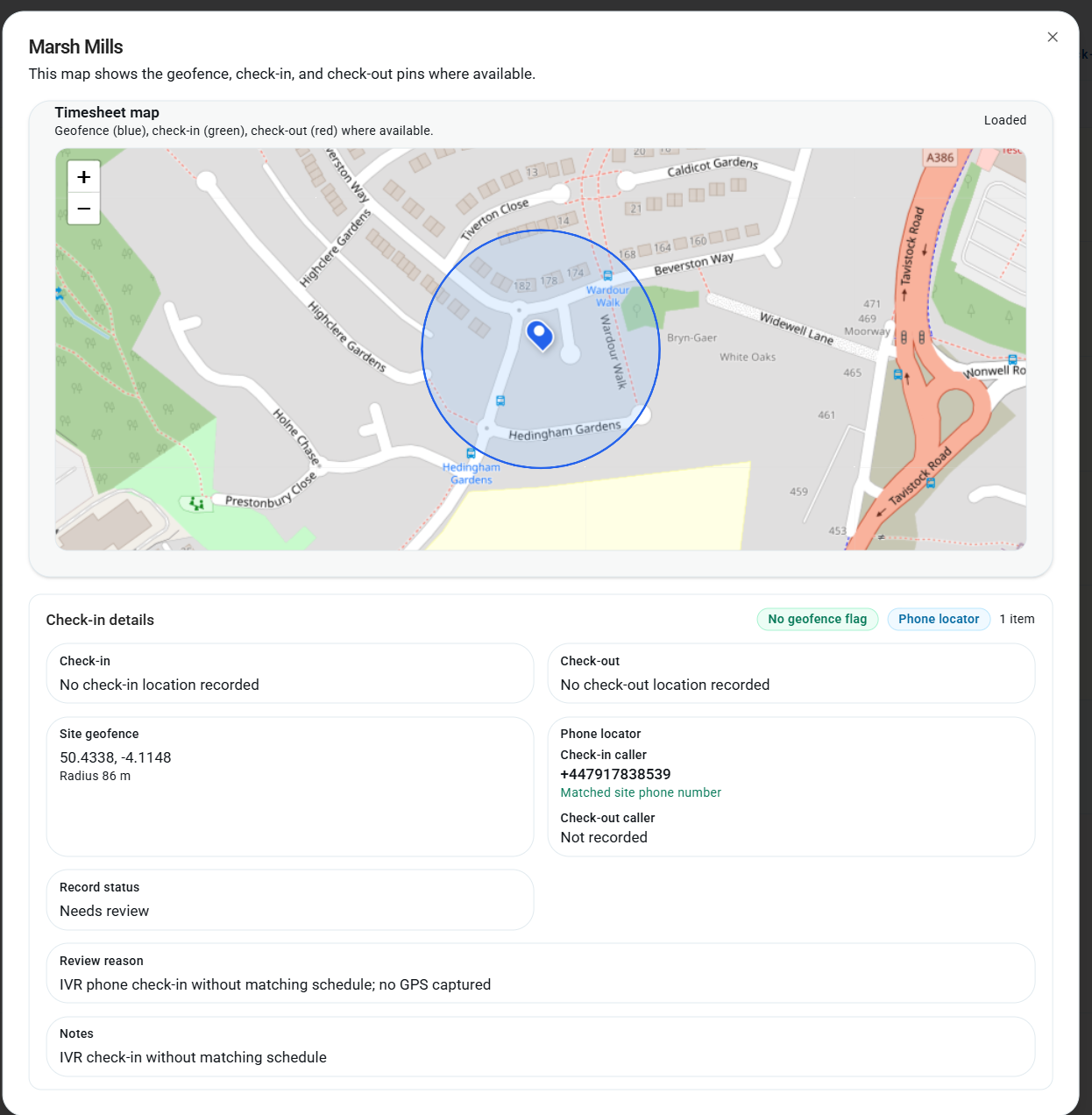
View map dialogThe map dialog shows phone locator details, caller number, matched site phone number, geofence information, record status, review reason, and notes.
No GPS capturedPhone check-in is based on the phone locator and site matching. It may not include mobile GPS check-in or check-out coordinates.
Payroll reviewCheck planned duration, actual duration, payable duration, and notes before approving an IVR timesheet.
Setup examples

What to check when reviewing IVR entries
- Confirm the staff member. Check the staff ID belongs to the person who carried out the work.
- Confirm the site. Check whether the caller matched the site phone number or whether a site code was entered.
- Check the schedule. If no schedule was found, confirm whether the planned schedule is missing, inactive, outside its dates, or attached to the wrong site.
- Check check-in and check-out together. Make sure the entry has the expected start and finish information before approving payable time.
- Use notes for exceptions. Record why an IVR entry was approved, corrected, or left for follow-up.