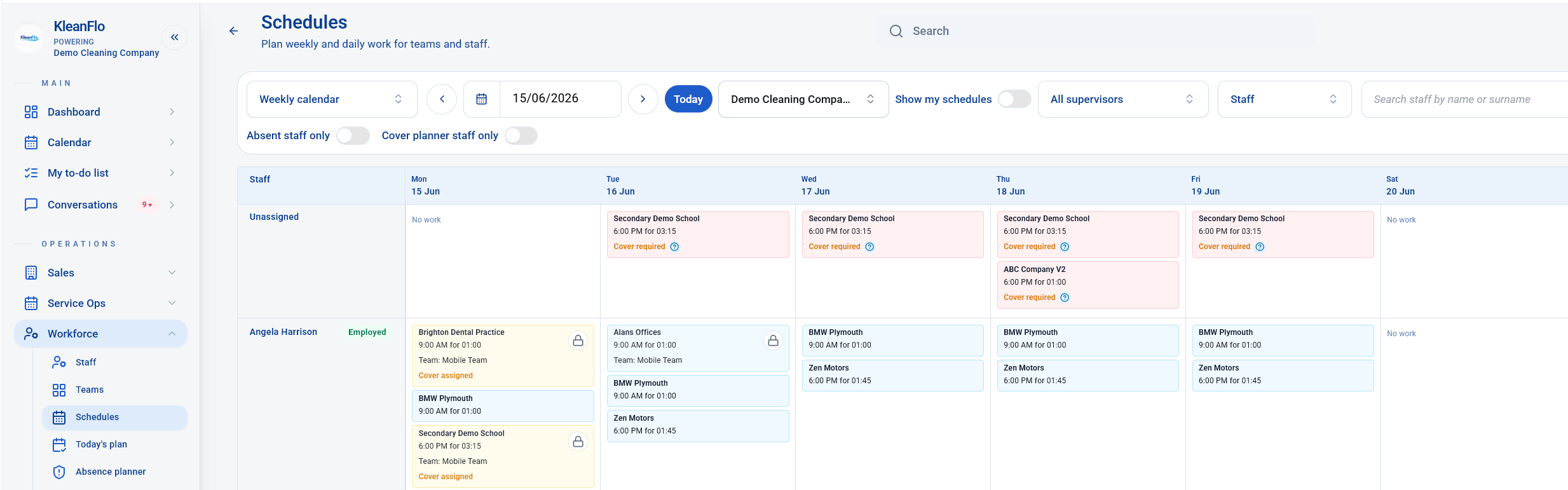

Weekly means KleanFlo will generate the same pattern each week until the schedule ends or is changed.
Schedules
Use Schedules to check the planned pattern of work before looking at Today's Plan. A schedule tells KleanFlo who should work, where, on which days, for how long, and what check-in rule applies. If location warnings appear on timesheets, also check the site geofence.
Example
Active
Weekly fixed-start schedule
Standard recurring work with a set start time and the same duration Monday to Friday.
ZoneKingston House
Mon1h 15m
Tue1h 15m
Wed1h 15m
Thu1h 15m
Fri1h 15m
Sat-
Sun-
How to read a schedule
The assigned staff member or team controls who sees the work and who is expected to check in.
The first generated work starts from this date. If future jobs are missing, confirm the start date and active status.
For a fixed-start schedule, the job is expected to start at the exact scheduled time, such as 08:00.
Each day shows how long the cleaner is expected to work. A dash means no work is planned that day.
The zone shows the service area or part of the site. Wrong zone information can affect work instructions and reporting.
Sign-in rule: set-time shift
What it meansThe staff member is expected to check in for a shift that starts at the scheduled time.
Why it mattersFor fixed-start and day-cleaning shifts, KleanFlo can raise a missing check-in alert 15 minutes after the scheduled start time if the staff member has not checked in.
What to checkMake sure the start time and sign-in rule match the job. Fixed-start and day-cleaning shifts can alert 15 minutes after start time; keyholder evening shifts alert at 08:00 the next morning; weekend-window shifts alert at Monday 08:00.
What franchisees should verify
- Customer and site are correct. The schedule should belong to the right customer and service location. If staff receive outside-geofence warnings, review the site geofence.
- Staff member or team is correct. If the work belongs to a team, do not try to edit it from an individual staff row.
- Start date is correct. A wrong start date can make work appear too early, too late, or not at all.
- Start time is correct. Fixed-start work drives check-in expectations. For fixed-start and day-cleaning shifts, missing check-in alerts can be raised 15 minutes after the scheduled start time.
- Daily durations match the contract. In the example, Monday to Friday each generate 1 hour 15 minutes.
- Zone is correct. Schedules are defined by zone, so check Schedule Wizard zone setup if the work area, audit area, or cleaning specification looks wrong.
- Inactive days are intentional. A dash on Saturday or Sunday means no planned work for that day.
- Schedule is active. Active schedules generate planned work; inactive schedules should not be expected in Today's Plan.
When schedules become live work
Schedule patternRecurring rule, days, times, duration, staff, and site.
Planned workKleanFlo generates actual jobs for the calendar.
Today's PlanLive view used to monitor work starting, in progress, and finished.
TimesheetsCompleted or corrected work feeds timesheet review.
Key schedule states
UnassignedWork still needs to be allocated or covered before the service date.
Covered workShown in yellow when cover has been assigned for work affected by absence or availability.
Drag and dropJobs can be moved to another staff member where reassignment is allowed.
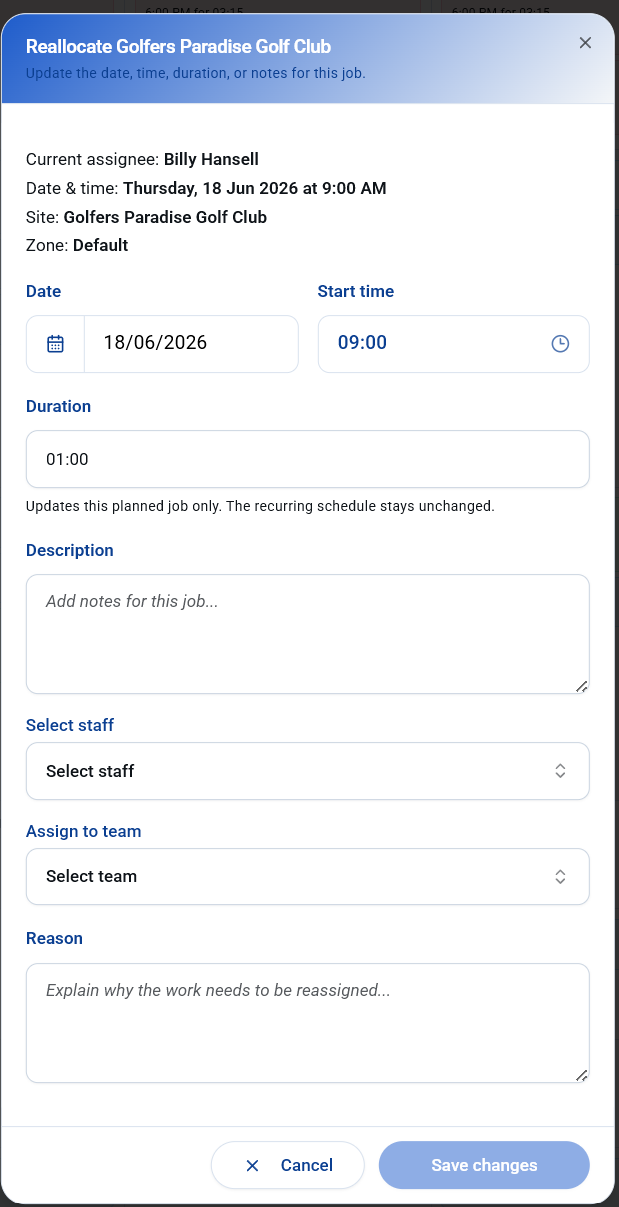
Click to editEditable jobs open a dialog for date, time, duration, notes, staff, team, and reason.
Team workTeam work cannot be edited from the staff row when shown against a staff record.
Fixed-start workThe cleaner is expected to start at the scheduled time; use this for work with a firm start time.
Common schedule issues
View schedule screenshots